
Appearance
Search drawer
What the search drawer shows before anyone types. Once a customer starts typing, results take over and these settings step aside.
Open Theme settings → Search drawer in the theme editor.
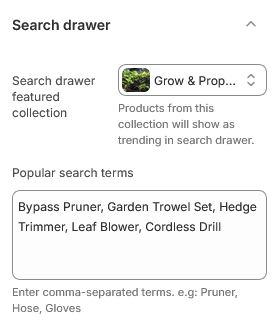
The drawer itself is documented under Search drawer.
Why the empty state matters
An empty search box is a dead end. A customer who opens search without knowing what to call the thing they want will close it again. These two settings turn that blank moment into a starting point.
Search drawer featured collection
Pick a collection and its products appear in the drawer as suggestions. Best sellers or new arrivals both work well — the aim is to give someone something to click rather than to merchandise precisely.
Leave it empty and the drawer simply shows no products until a search is typed.
Popular search terms
A comma-separated list of terms, shown as clickable chips. Clicking one runs that search.
Use the words your customers actually use, not your internal product names. The most useful source is your store's own search data under Analytics → Reports → Top online store searches in the admin — it tells you what people typed, including the searches that returned nothing.
Four to six terms is a good number. Beyond that the chips wrap into a block that reads like a paragraph and gets skipped.
| Setting | Type | Default | Notes |
|---|---|---|---|
| Search drawer featured collection | Collection | — | Products from this collection will show as trending in search drawer. |
| Popular search terms | Multi-line text | Bypass Pruner, Garden Trowel Set, Hedge Trimmer, Leaf Blo… | Enter comma-separated terms. e.g: Pruner, Hose, Gloves |