
Appearance
Cart
How the cart behaves and what it shows. The first setting here — drawer or page — changes where customers spend the moments before checkout, so it is worth deciding deliberately rather than leaving at the default.
Open Theme settings → Cart in the theme editor.
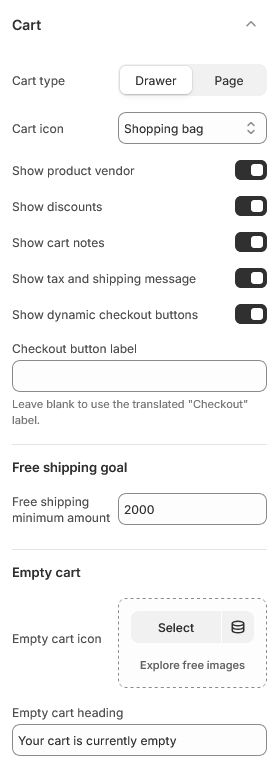
Drawer or page
Cart type offers two models:
Drawer slides the cart in from the side without leaving the page. Customers can keep browsing, and adding a second item feels cheap. This is how Greenix ships. See Cart drawer.
Page sends the customer to a dedicated cart page. It gives more room for line item detail and reads as a more deliberate step. See Cart page.
Both are fully built — this is a genuine choice, not a fallback.
Cart icon sets the icon in the header.
What the cart shows
| Setting | Effect |
|---|---|
| Show product vendor | Brand name under each line item |
| Show discounts | Automatic and script discounts applied to a line |
| Show cart notes | A message field for the customer |
| Show tax and shipping message | A note that tax and shipping are calculated at checkout |
Show discounts is worth leaving on. If a discount applies and the cart does not say so, customers assume it failed and either abandon or contact support.
Show cart notes adds a free-text field. Useful for gift messages and delivery instructions; leave it off if you have nothing to do with the answers, since an ignored note field creates the expectation that someone reads it.
Checkout
Show dynamic checkout buttons adds the accelerated checkout options — Shop Pay, Apple Pay, Google Pay and whatever else the store has enabled — beside the standard checkout button.
Leave this on
These buttons are one of the strongest conversion levers Shopify offers, because they skip the address and payment forms entirely for returning customers. Turning them off is rarely the right call, and Shopify expects themes to support them.
Checkout button label replaces the default wording. Leave it blank to use Shopify's translated label, which adapts to the customer's language — a custom label does not.
Free shipping progress
Free shipping minimum amount shows a progress message telling the customer how much more they need to spend to qualify.
This only displays the message. The actual free shipping rate is configured under Settings → Shipping and delivery in the admin, and the two are not linked — if you change the threshold there, change it here as well or the cart will promise something checkout does not deliver.
Leave it empty to hide the message entirely.
Empty cart
Empty cart heading and Empty cart icon cover the state a customer sees before adding anything. It is the cart's most-seen state on a new store, so it is worth a sentence better than "Your cart is empty".
| Setting | Type | Default | Notes |
|---|---|---|---|
| Cart type | Dropdown | Drawer | Options: Drawer, Page |
| Cart icon | Dropdown | Shopping bag | Options: Cart, Shopping bag, Basket |
| Show product vendor | Checkbox | On | — |
| Show discounts | Checkbox | On | — |
| Show cart notes | Checkbox | On | — |
| Show tax and shipping message | Checkbox | On | — |
| Show dynamic checkout buttons | Checkbox | On | — |
| Checkout button label | Text | — | Leave blank to use the translated "Checkout" label. |
Free shipping goal
| Setting | Type | Default | Notes |
|---|---|---|---|
| Free shipping minimum amount | Number | — | — |
Empty cart
| Setting | Type | Default | Notes |
|---|---|---|---|
| Empty cart icon | Image | — | — |
| Empty cart heading | Text | Your cart is currently empty | — |