
Appearance
Search drawer
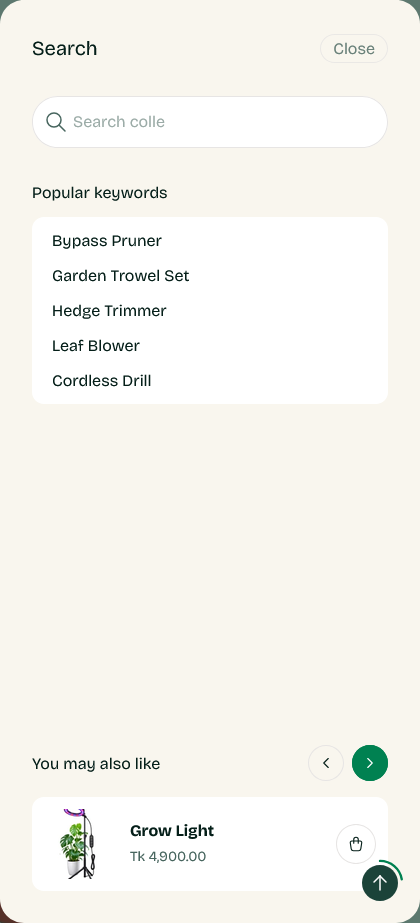
The search panel that opens from the header. It shows results as the customer types, covering products, collections and blog posts.
It has no settings of its own. What it shows before anyone types is configured under Theme settings → Search drawer.
Turning it on
Show search in the Header section adds the search icon. Turn it off and there is nothing to open the drawer with.
Before typing
The drawer opens showing:
- Products from the featured collection you chose in theme settings
- Popular search terms as clickable chips
Both are worth setting. An empty search box is where customers give up; see Search drawer settings for how to choose them.
While typing
Results appear as the customer types, grouped by what they are — products, collections and articles each in their own group, labelled.
Pressing Enter, or following the link at the bottom of the results, opens the full search page, which adds filtering, sorting and pagination.
Improving the results themselves
The results come from Shopify's search, not from the theme, so the theme cannot change what matches a query. If customers are not finding things:
- Shopify's free Search & Discovery app lets you add synonyms, so a customer searching
strimmerfinds yourstring trimmer. - Check Analytics → Reports → Top online store searches for the searches that returned nothing. That report is the shortest route to knowing which words your catalog is missing.
This section has no settings of its own. Its appearance is controlled by the theme settings it reads.