
Appearance
Care guide
A row of illustrated points explaining how to look after what you sell — sharpening, storage, servicing, cleaning.
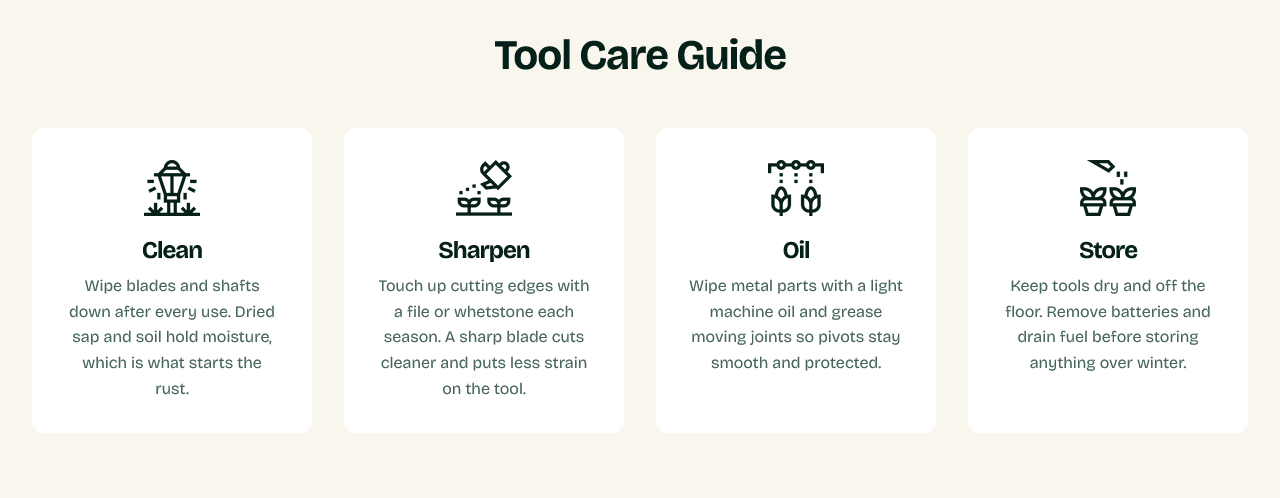
Setting it up
Heading sits above. Add a Feature block per point, each with an Icon and a Description.
Columns on desktop sets how many sit in a row.
Why it earns its place on a product page
Care information answers a question customers have before buying, not only after: how much work is this going to be?
Answering it on the product page removes a hesitation, and it does something for you as well — it is genuine content about the product, which is worth more to search engines than another block of marketing copy.
Greenix ships it on the product template for this reason.
Writing the points
Four to six short ones. Each should be a single instruction — "Wipe the blade dry after use", "Store indoors below 5°C" — rather than a paragraph.
If you have more to say than fits, put the summary here and link to a full guide as a blog post or a standard page.
Icons
Each feature takes an icon image. Use a consistent set — same style, same weight, same size — or the row looks assembled rather than designed.
Simple line icons on transparency work best, since they sit on whatever background the section has.
Settings
Section settings
| Setting | Type | Default | Notes |
|---|---|---|---|
| Heading | Text | Tool care guide | — |
| Columns on desktop | Slider (2–4) | 4 | — |
Background
| Setting | Type | Default | Notes |
|---|---|---|---|
| Background | Color | — | — |
Padding
| Setting | Type | Default | Notes |
|---|---|---|---|
| Padding top | Number | 30 | Adjust the top padding for this section. If left empty, the global section padding will be used by default. |
| Padding bottom | Number | — | Adjust the bottom padding for this section. If left empty, the global section padding will be used by default. |
Blocks
Feature
| Setting | Type | Default | Notes |
|---|---|---|---|
| Icon | Image | — | — |
| Heading | Text | Feature | — |
| Description | Multi-line text | Short supporting description for this feature. | — |