
Appearance
Contact map
An embedded map showing where you are.
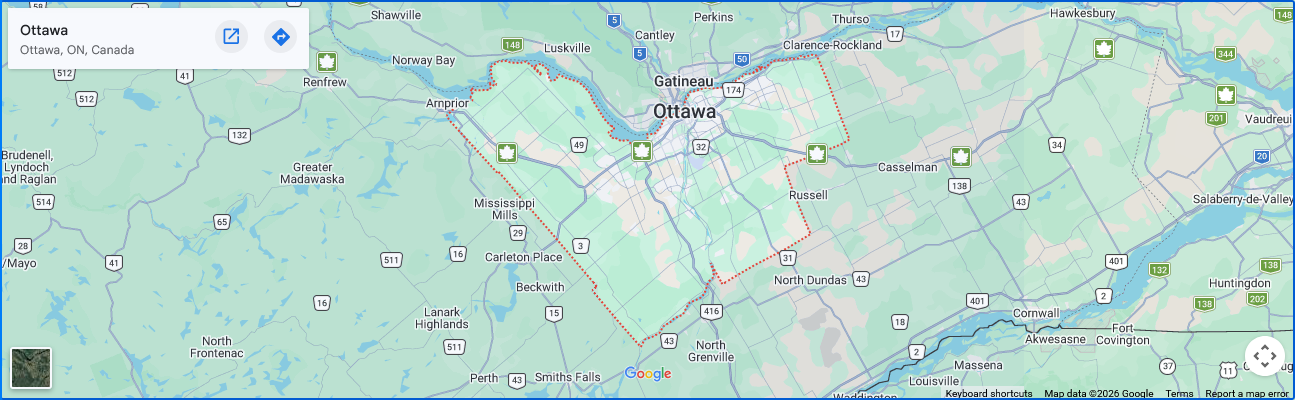
Getting the embed URL
The section needs Google Maps' embed URL, which is not the same as the link in the address bar.
- Open Google Maps and find your location.
- Click Share, then the Embed a map tab.
- Click Copy HTML.
- From the copied code, take the address inside
src="..."— it beginshttps://www.google.com/maps/embed?pb=. - Paste that into Google Maps embed URL.
Pasting the whole <iframe> tag, or the ordinary map link, will not work. The field expects the embed address on its own.
Height
Map height sets how tall the map is. Enough to show the surrounding streets is more useful than a tall map showing a wide region — the visitor is trying to work out how to get to your door.
No API key needed
The embed URL works without a Google Cloud account or an API key. If you find yourself being asked for one, you have taken the wrong URL from the share dialog.
Where to use it
The page.contact template, under the Contact section.
Only worth adding if customers can visit you. An online-only store gains nothing from a map of a warehouse they cannot enter.
Settings
Section settings
| Setting | Type | Default | Notes |
|---|---|---|---|
| Google Maps embed URL | Text | — | Google Maps → Share → Embed a map → Copy the src URL only (not the full iframe tag). URL must contain 'maps/embed'. Short URLs like maps.app.goo.gl will NOT work. |
| Map height | Slider (100–1200 px) | 400 | — |