
Appearance
Colors
Greenix uses color schemes rather than a single palette. A scheme is a complete set of colors — background, text, headings, buttons, borders — that travel together. Sections then pick a scheme instead of picking individual colors, which is what keeps a store looking consistent as it grows.
Open Theme settings → Colors in the theme editor.
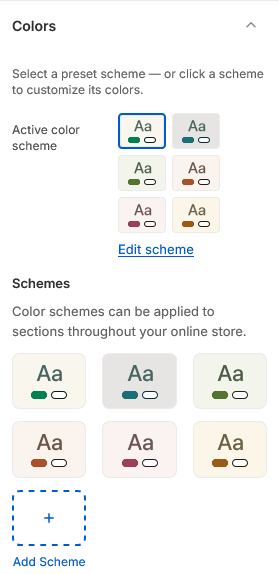
How schemes work
Each scheme defines the colors for one "surface". Setting the Active color scheme applies that surface across the store: every section that has not been given its own scheme uses it, and so do the parts of the theme that sit outside any section, such as the page background.
To edit a scheme, click it in the Color schemes list. Changes take effect everywhere that scheme is used, immediately.
Adding a scheme
Click Add scheme in the color schemes list. A new scheme starts as a copy of the last one, so adjust from there rather than starting blank.
Give schemes purposeful names — Light, Dark, Sale — rather than color names. A scheme called Green becomes confusing the moment you change it to blue.
Using a different scheme in one section
Most sections have their own color settings, so you can give a single section a different background or text color without touching the theme-wide scheme. Look under Colors in that section's settings.
Sections that fall back to the scheme when you leave their color settings blank include the Page hero — its overlay, background and text colors all default to the active scheme rather than to black.
Check contrast before you commit
The theme places text over images in several sections — heroes, banners, shoppable images. A scheme that reads well on a plain background can become unreadable over a photo. Set the overlay opacity in those sections rather than darkening the scheme itself.
Select a preset scheme — or click a scheme to customize its colors.
| Setting | Type | Default | Notes |
|---|---|---|---|
| Active color scheme | Color scheme | scheme-one | — |